What does each permission actually do?
macOS owns the menu bar. To hide, reveal, or reorder another app's menu bar item, a manager needs Accessibility access to interact with that system UI. Bartender asks for this separately from Screen Recording; its permissions explanation describes Accessibility as the permission used to move items.
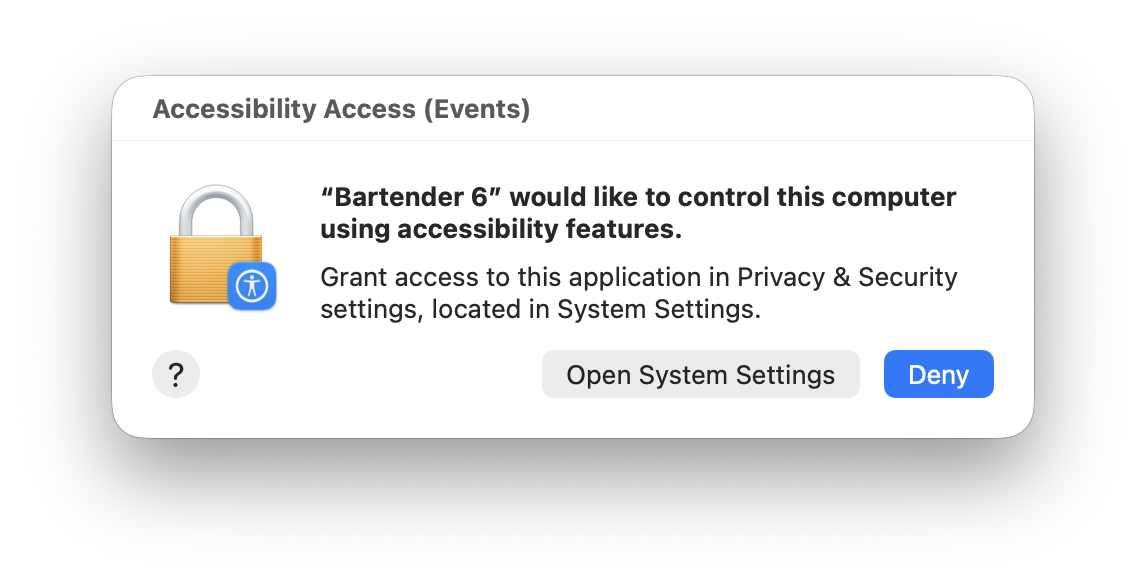
Accessibility is Bartender's separate permission for controlling menu bar items.
Screen Recording reads pixels. Bartender uses it to capture what menu bar items look like, so its own interface can show their actual images instead of a generic app icon. Depending on the manager and feature, screen capture can also support live hover previews, icon images in a panel or search, or sampling menu bar colors for styling. Those are visual features, not the mechanism that moves an item.
The macOS wording can feel broader than the job you asked the app to do. For example, the system dialog triggered during Ice setup says the app would like to record the screen and audio. The prompt describes the scope of the macOS permission; it does not by itself establish that an app is saving or transmitting a recording.
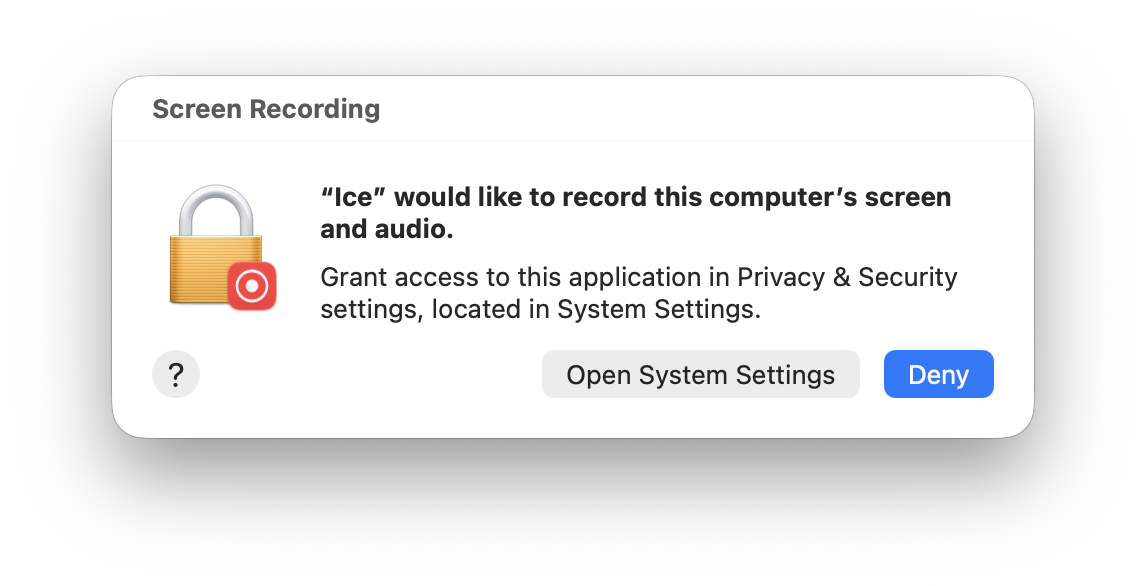
The system prompt is about screen access, separate from Accessibility control.
Why does Bartender 6 treat recording as required?
Bartender 6 presents Screen Recording and Accessibility side by side during setup. That makes sense for its interface: it wants both the ability to manage items and images of those items for Layout and other visual surfaces. But the two permissions still have different roles.
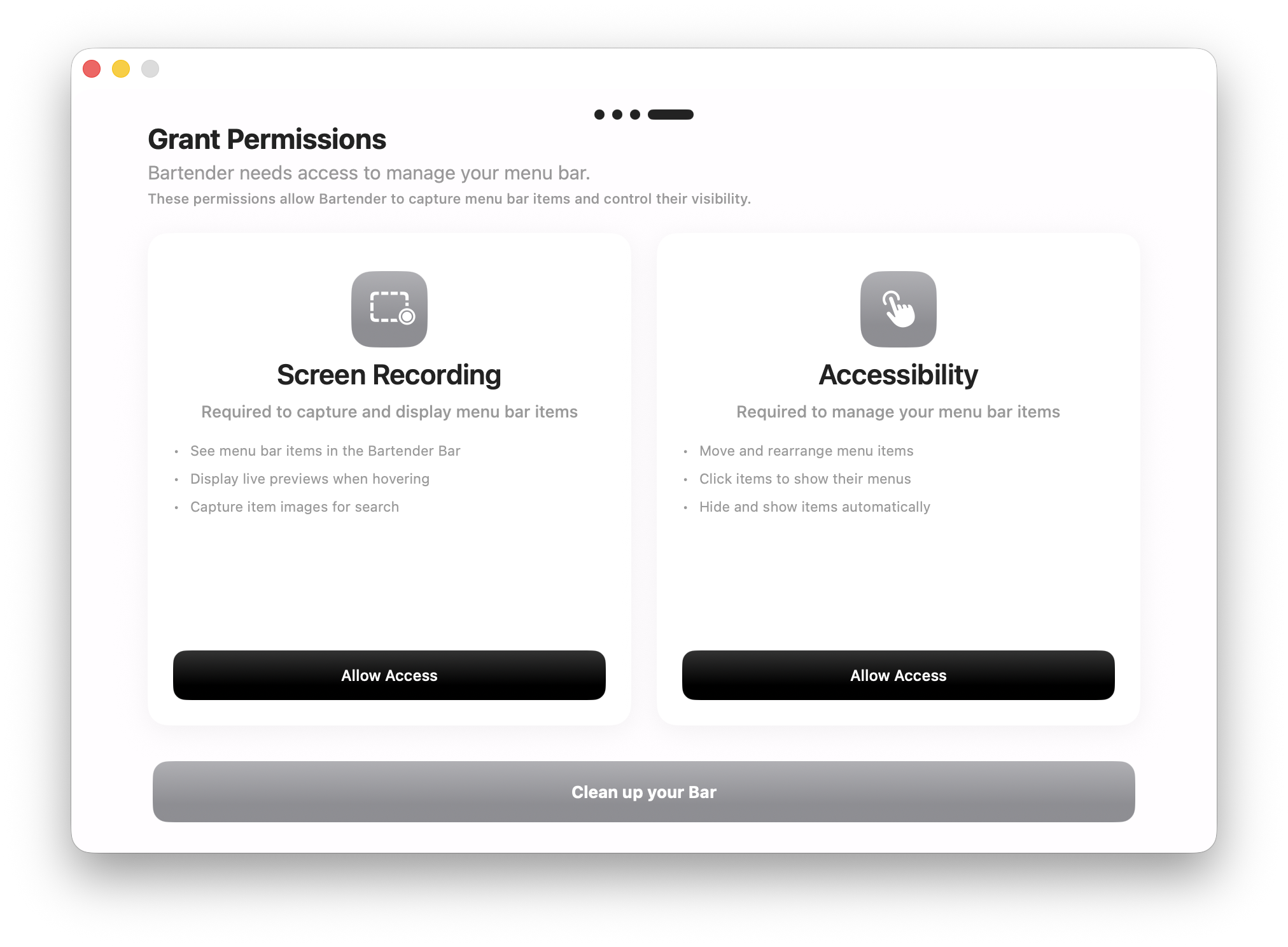
Bartender 6 presents both permissions before you start organizing the bar.
In Bartender 6, the difference becomes visible when you turn recording off. Its Layout preferences show “Screen Recording Disabled — you cannot interact with the Bartender Layout preferences.” The editor is blocked even though Accessibility is the permission for moving menu bar items. That is a restriction of Bartender 6's workflow, not a macOS rule that every manager must record the screen.
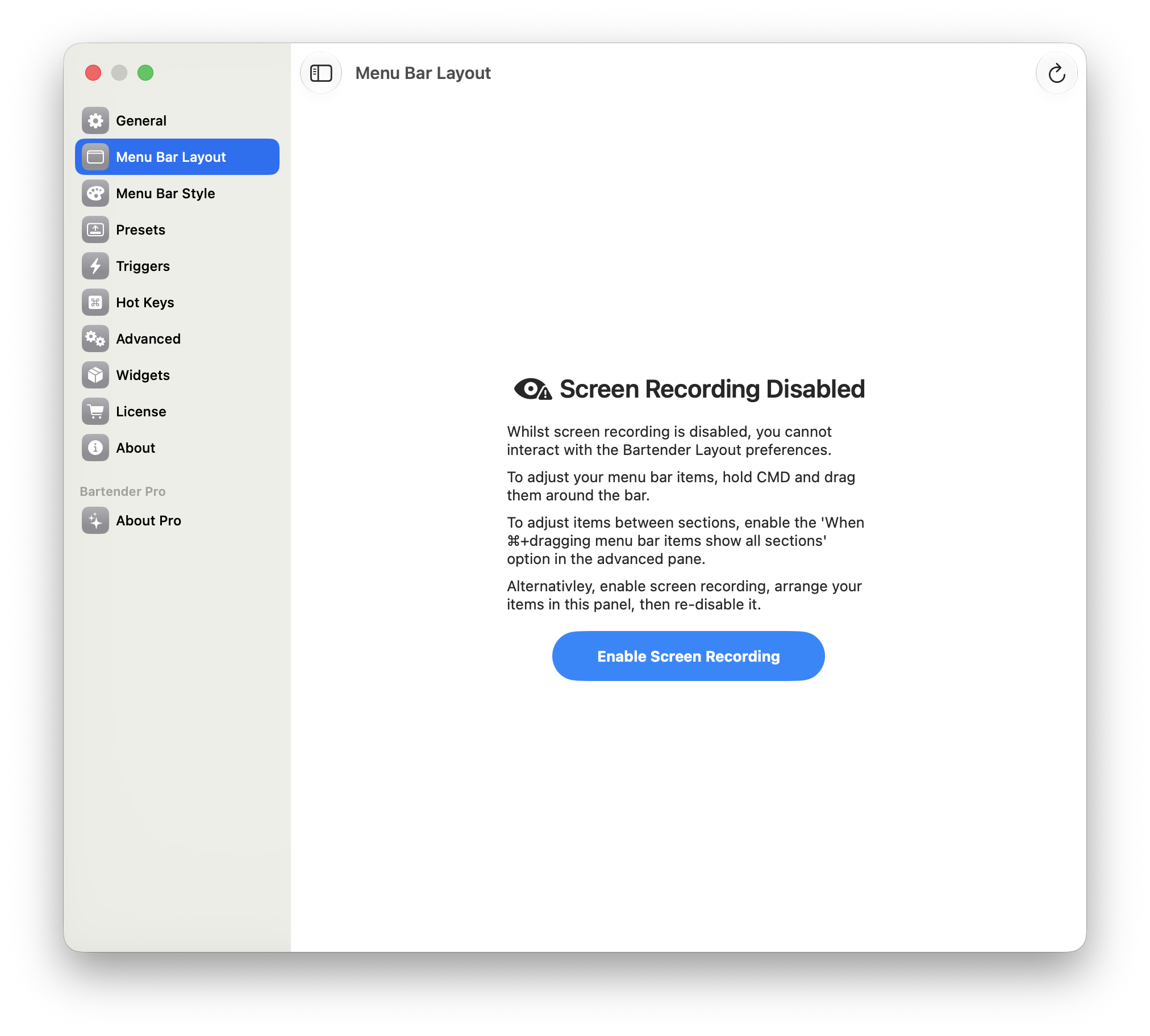
With recording disabled, Bartender 6 prevents interaction with Layout preferences.
If Bartender 6 reports recording as disabled even after you enable it, see our Bartender permission loop guide for the specific troubleshooting path. For the broader hands-on comparison, read our five-app Screen Recording test.
Is Screen Recording still required in Bartender 7?
Bartender's Bartender 7 page and Golden Gate release notes say it can function without Screen Recording. Its stated tradeoff is visual: it shows app icons instead of captured images of the actual menu bar items when recording is off. This is Bartender's current public direction and a meaningful change from the Bartender 6 Layout experience shown above. Check the version you are running before assuming its permission behavior matches either screenshot.
What if I prefer not to grant recording?
You have choices, including within Bartender's newer version. Other managers are explicit about their modes: Ice says it can work in a limited mode without Screen Recording, while Thaw marks that permission Optional. Those labels describe their own feature tradeoffs; they do not promise identical behavior across apps.
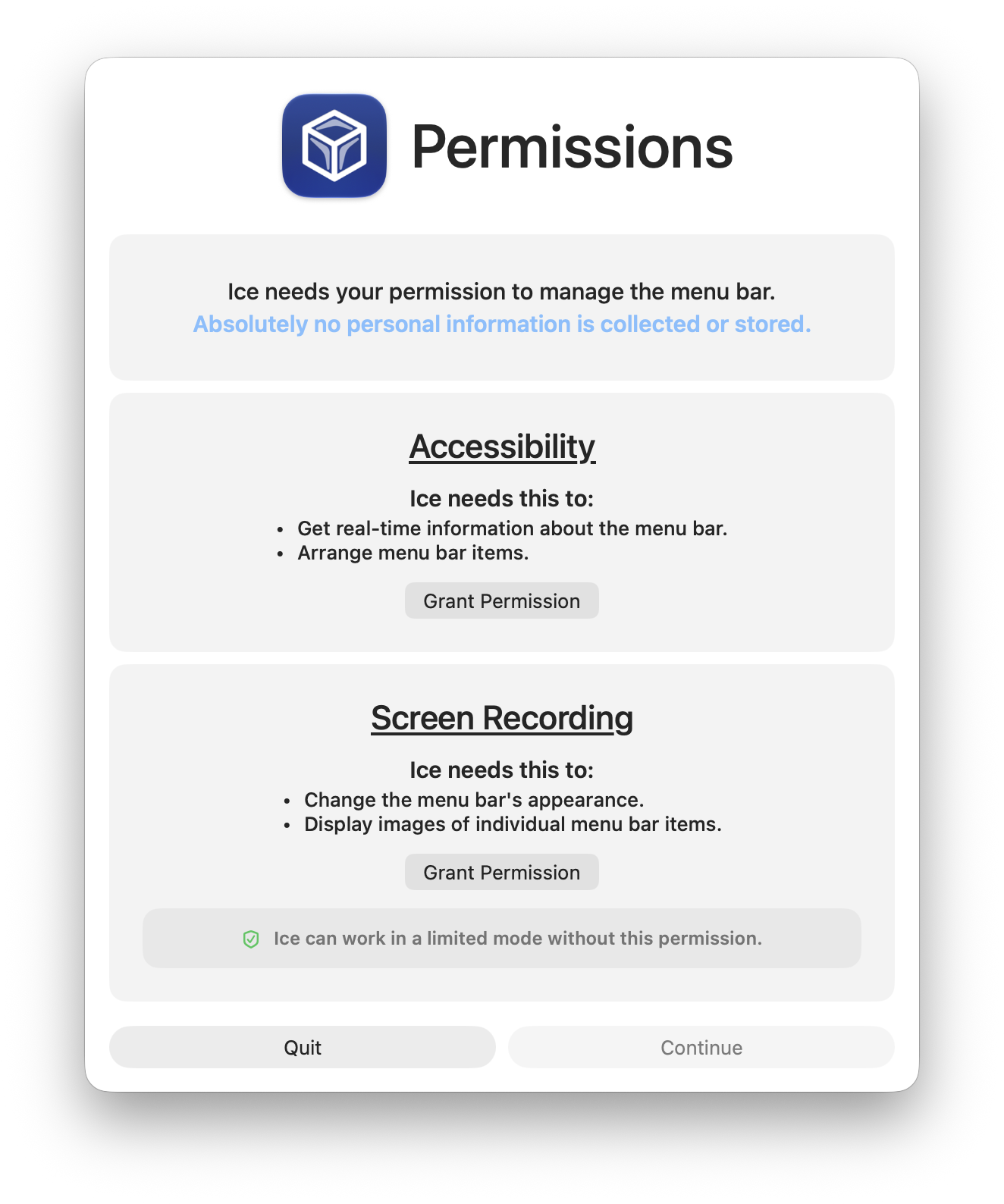
Ice explains that a mode without recording has limited features.
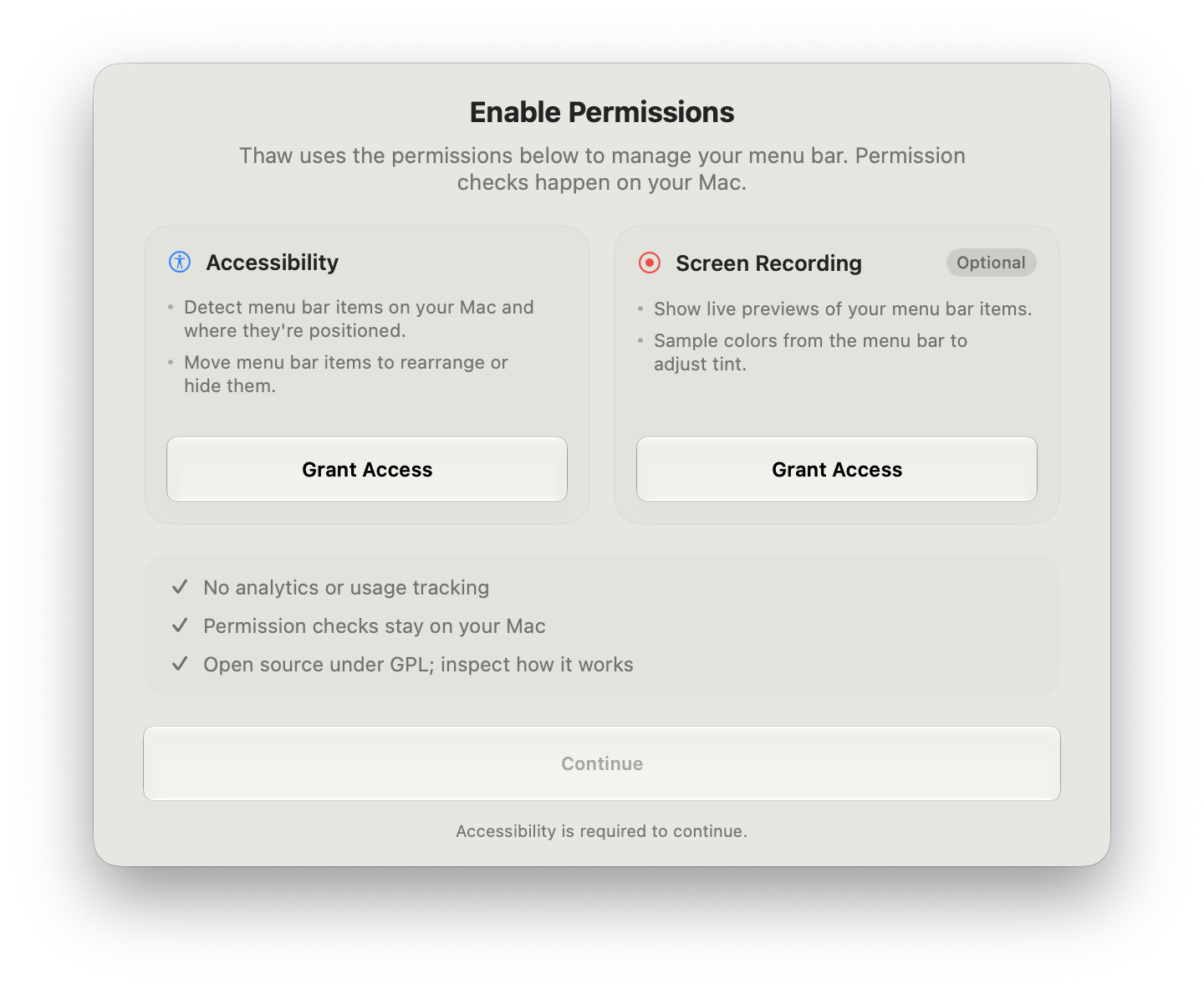
Thaw labels the two permissions according to its own requirements.
Lounge asks for Accessibility only. It does not request Screen Recording, so using Lounge does not create a persistent screen recording indicator. It costs $3.99/year and has a 7-day trial. If you are weighing its simpler permission setup against Bartender's deeper controls, see Lounge vs Bartender. Our best macOS menu bar managers guide covers more options.
The practical question is whether you need captured item images and the visual features tied to them. For basic hiding and reordering, Accessibility is the relevant permission. For Bartender 6's Layout editor, its own interface also demands Screen Recording; Bartender 7's published materials offer a way to use the app without it.