What changed on Golden Gate?
Golden Gate gives the menu bar its own overflow behavior, while Control Center can hide some items through macOS settings. That creates another place to check when a third-party layout and the live bar disagree. Bartender's Golden Gate preview and Bartender 7 release notes describe native overflow interactions, items hidden in Control Center, and continuing compatibility work. Some of its item detection is explicitly experimental. This is a practical compatibility concern, not a claim that every icon or manager breaks on macOS 27.
There are also two separate jobs behind many menu bar managers: move or hide an item, and capture its exact appearance for a layout preview. Screen Recording can serve the second job. A permission prompt or a beautiful preview does not prove that the first job works. In our hands-on macOS 27 test, several older manager builds failed to reliably hide a test item even after setup. Treat those findings as a snapshot of the versions tested; Bartender's Golden Gate builds have since continued to change.
Manage the bar with Golden Gate's native controls
- Edit Control Center. Open Control Center and choose Edit Controls. Add, remove, or rearrange controls there; pin frequently used controls to the menu bar. Apple's macOS 27 guide explains these steps.
- Check Menu Bar settings. Open System Settings → Menu Bar to review available items and the bar's display behavior. See Apple's Menu Bar settings guide.
- Reorder supported icons. Hold ⌘ and drag an icon to a better position. For an unwanted app icon, also check that app's own setting for showing its menu bar item. Apple's guide covers removing supported controls with ⌘-drag.
- Verify what is actually visible. If an item seems missing, check Control Center and any active manager's hidden area before treating it as a failed permission grant.
These built-in steps cover basic cleanup. For a broader system of daily versus occasional icons, use our menu bar organization guide; for removing clutter, see how to clear up your menu bar.
Why can an older manager look set up but fail to hide an icon?
Start with the live hide-item test: move one nonessential app icon into the manager's hidden section, then reveal it again. If the layout changes but the live bar does not, check the app's Golden Gate version and release notes. Also check whether macOS itself has hidden that item through Control Center. Avoid repeatedly changing permissions until you have confirmed which part is failing.
Bartender 6 adds a specific complication. Our earlier test captured a “Screen Recording Disabled” Layout wall when recording was unavailable, and the related Bartender permission-loop guide covers the case where the macOS toggle appears enabled but Layout remains blocked. That symptom does not establish an Apple-wide permission bug. Bartender's current Golden Gate work is a separate version path: Bartender 7 says it functions without Screen Recording, showing app icons when captured item images are unavailable. Compare its current build and known issues before judging it by a Bartender 6 test.
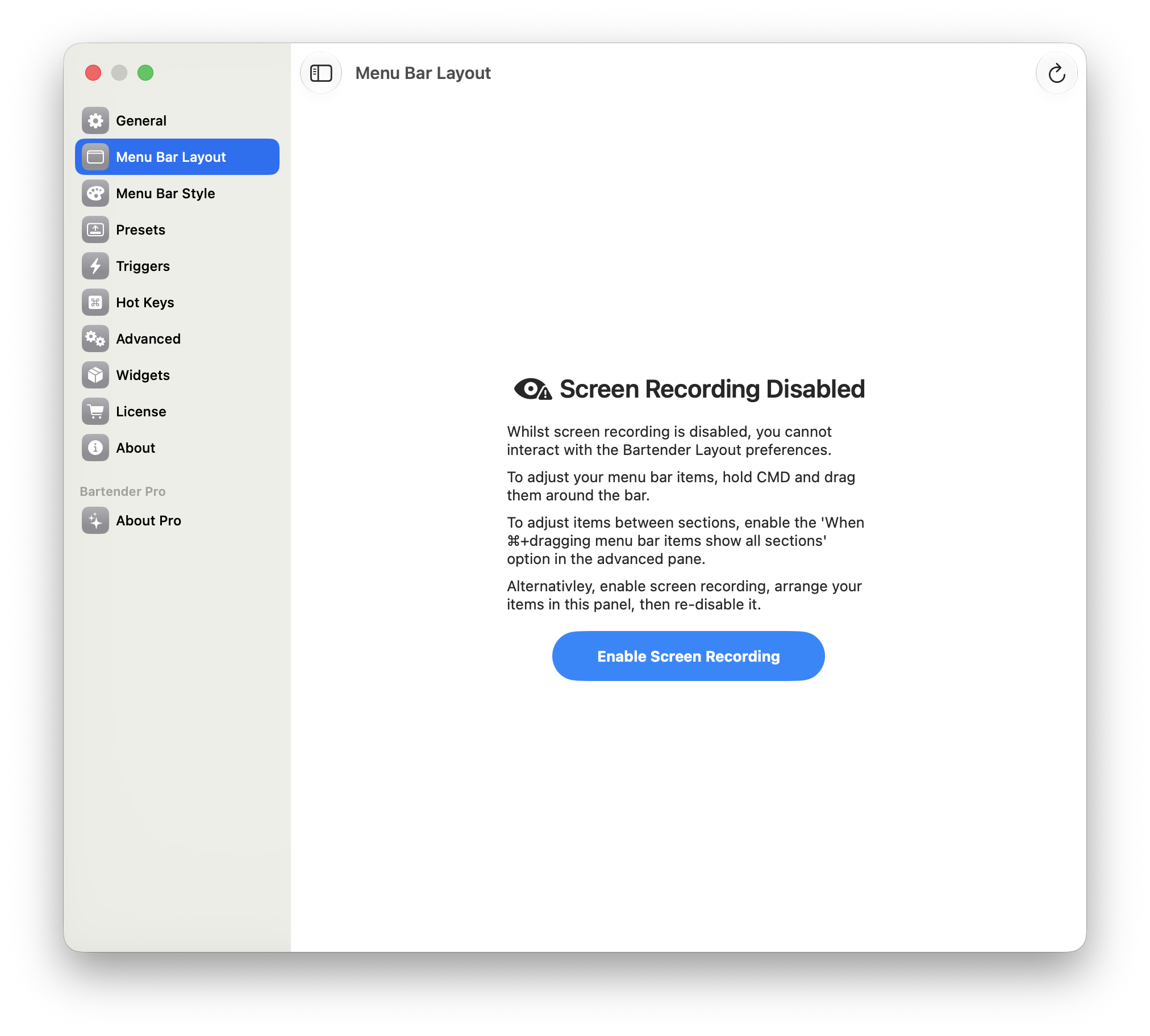
In the earlier Bartender 6 test, Layout was blocked when the app considered Screen Recording unavailable.
For the permission distinction, read why Bartender asks for Screen Recording. For current choices, see the macOS 27 manager roundup and Bartender alternatives for Golden Gate.
Set up a visible and hidden bar with Lounge
If the native controls leave too many occasional-use app icons on screen, Lounge offers a simple Golden Gate workflow:
- Install Lounge on macOS 26 Tahoe or later and grant its Accessibility permission. It does not ask for Screen Recording.
- Keep the icons you use daily visible. Hold ⌘ and drag an occasional-use icon across Lounge's divider into the hidden section.
- Press ⌘⇧L to reveal or hide that section. On a MacBook with a notch, use the notch-aware panel to reach hidden and visible icons without hunting around the camera housing.
- Hide and reveal one test icon to confirm the live bar matches your intended layout.
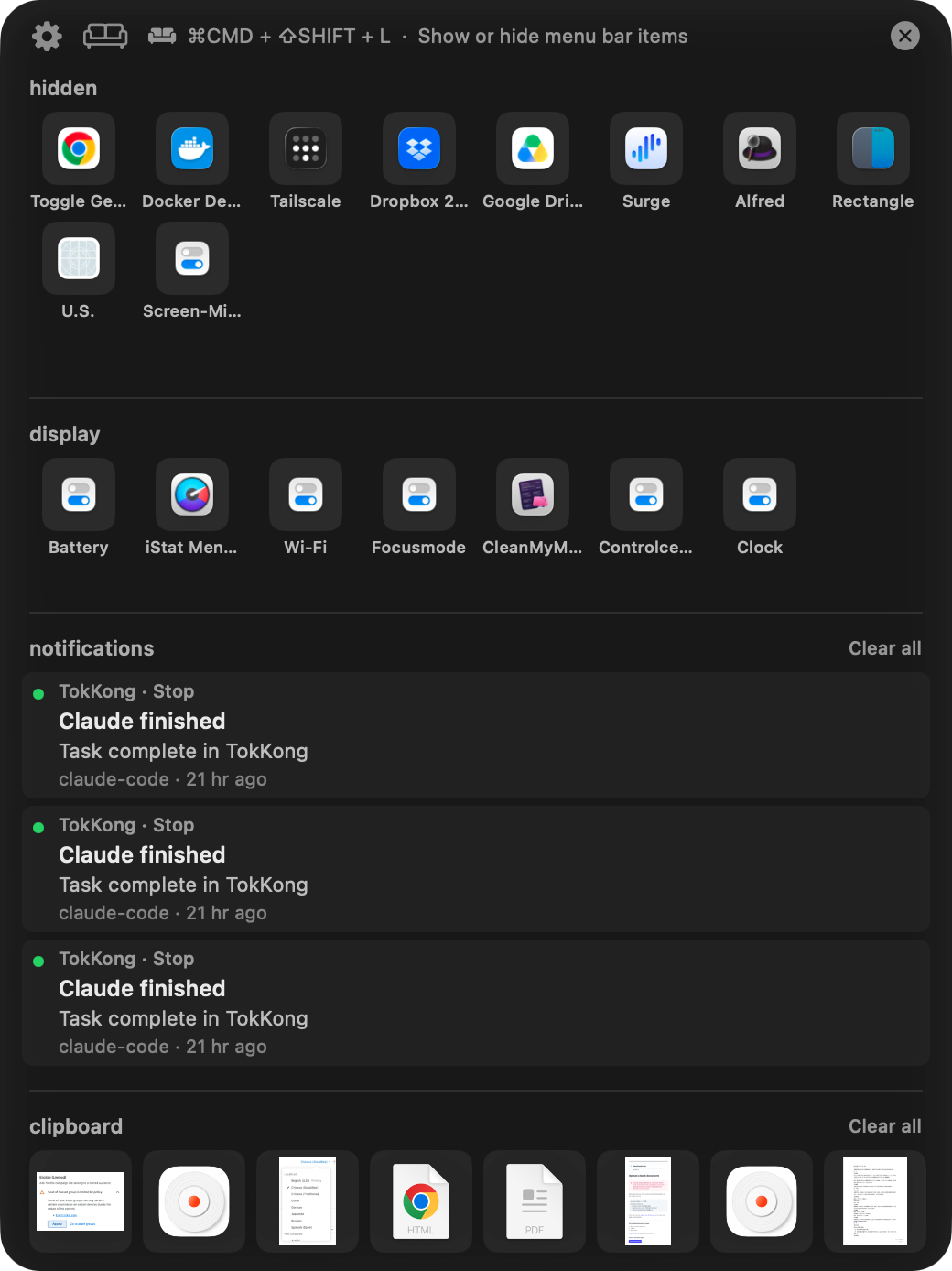
Lounge's panel places visible and hidden icons within reach around the MacBook notch.
Lounge also includes clipboard history. The getting started guide walks through setup, while Lounge vs Bartender covers the feature tradeoffs. Lounge is $3.99/year with a 7-day trial. If this visible/hidden approach fits your bar, try Lounge.