What is the status of the macOS 27 loop?
People running Bartender 6 on macOS 27 Golden Gate have reported a frustrating mismatch: Screen Recording appears enabled in System Settings, but Bartender still says it is disabled, sometimes leaving the Layout editor behind a permission wall. Our earlier menu bar permissions test documented that Layout wall on Bartender 6. The screenshot below shows the blocked state; it does not establish that every installation fails the same way.
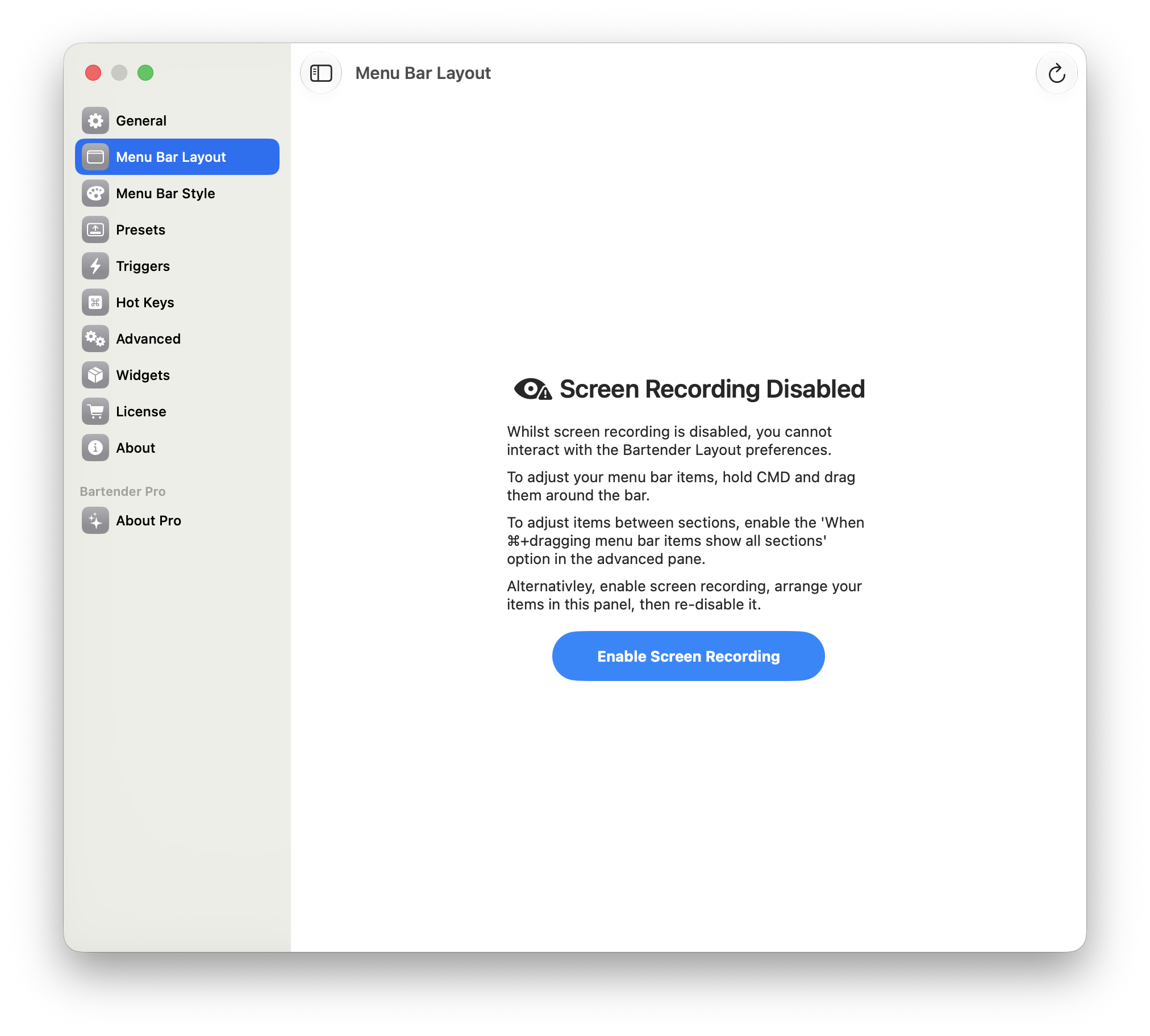
Bartender 6 can block Layout when it believes Screen Recording is unavailable.
The answer to “how long?” depends on which version you mean. We found no published date for a Bartender 6 fix to this specific loop. Bartender shipped a Golden Gate preview and now offers Bartender 7 for macOS 27. That gives you a current upgrade path without waiting for a promised version 6 patch.
Why does Bartender ask for Screen Recording?
Hiding, revealing, and reordering menu bar items rely on Accessibility. Screen Recording lets Bartender capture the actual look of menu bar items for previews and appearance features, including images shown in Layout and Bartender Bar. Bartender 6's interface may treat recording as a prerequisite for using Layout even though the underlying hide and reorder actions do not require screen capture. See our permission breakdown for the distinction.
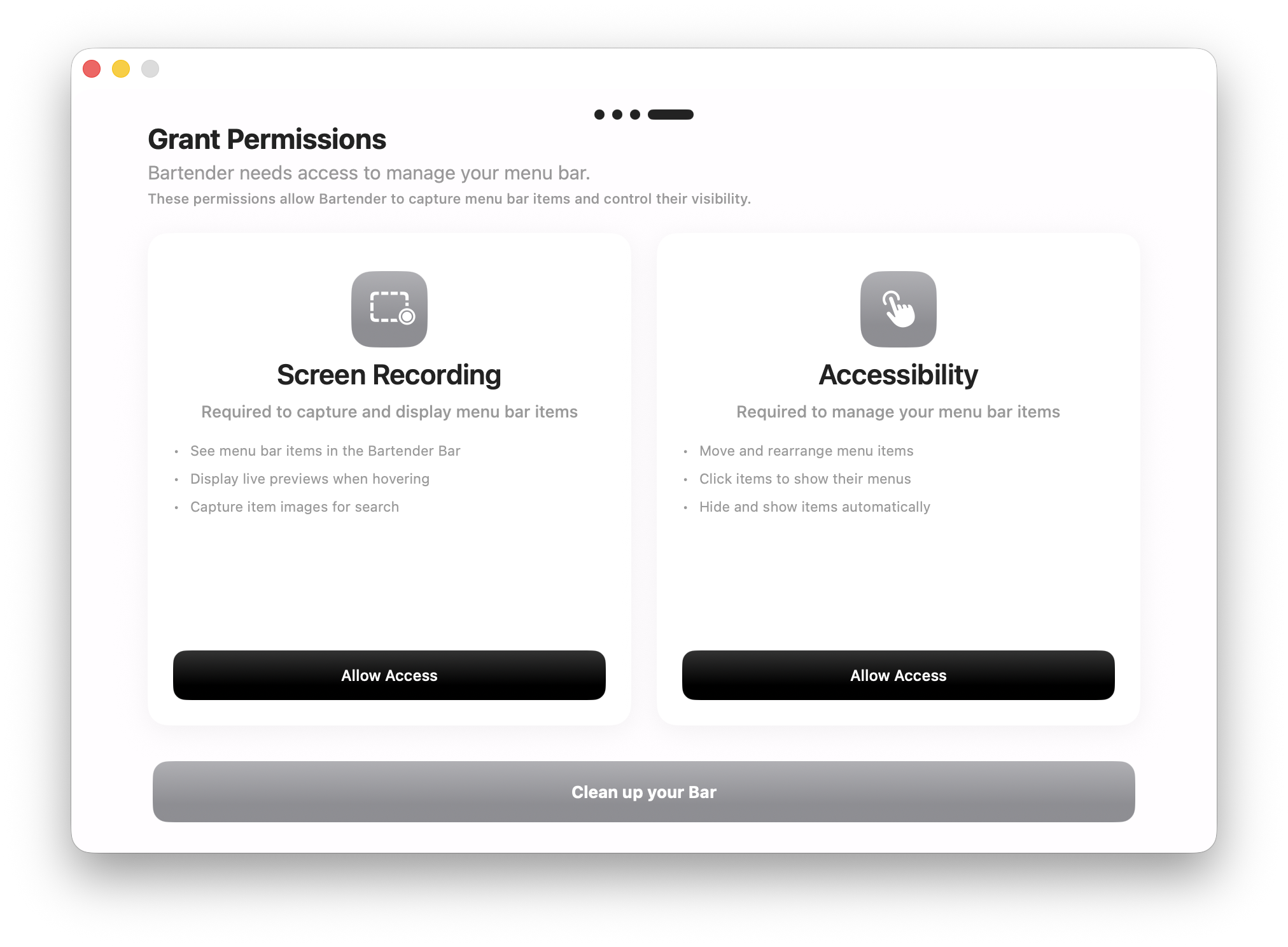
Bartender 6 presents the two permissions together during setup.
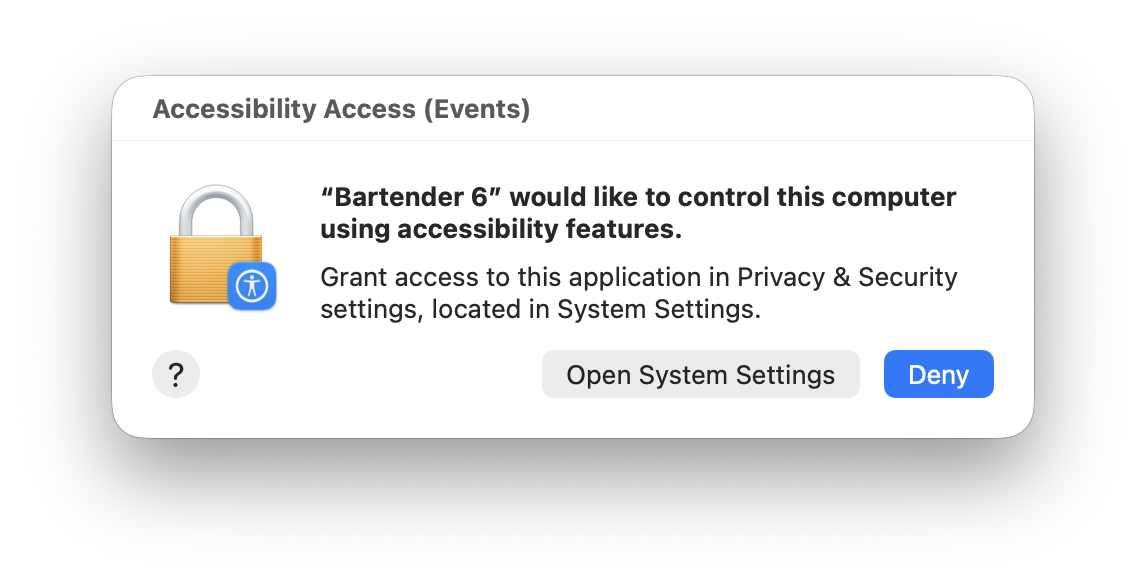
Accessibility is the separate permission used for menu bar control.
Bartender 7 changes the experience: with recording off, it says it shows app icons instead of captured menu bar item images. Its announcement describes Screen Recording as optional.
What can you try right now?
- Check the versions. If you are on macOS 27 with Bartender 6, first check Bartender's download and support page for the version intended for your macOS release.
- Reset the permissions once if you want to troubleshoot version 6. Bartender advises opening System Settings → Privacy & Security, removing Bartender from Screen & System Audio Recording and Accessibility, then relaunching it and granting access again. This is a troubleshooting step, not a guaranteed fix for the macOS 27 loop.
- If Layout is still blocked, stop cycling the toggle. Install the current macOS 27 build from Bartender's official site or contact Bartender support with your macOS version, Bartender version, and a screenshot of the message.
Should you use Bartender 6, the preview, or Bartender 7?
| Version | Practical path on macOS 27 |
|---|---|
| Bartender 6 | Listed by Bartender for Tahoe and Sequoia. A permission reset may help, but there is no published deadline for this specific macOS 27 loop. |
| Golden Gate preview | An early compatibility path; its release notes show the transition toward Bartender 7. |
| Bartender 7 | Bartender's current macOS 27 version. Screen Recording is optional; disabling it substitutes app icons for captured item images. |
If you already use Bartender's deeper rules and styling, trying version 7 is the most direct route. Check its current release notes for any feature or compatibility issue that matters to your setup. Our Lounge vs Bartender comparison covers the broader feature tradeoffs.
What if you want a simpler alternative?
Lounge uses Accessibility only, with no Screen Recording request. It is notch-aware, supports macOS 26 Tahoe and later, and costs $3.99/year with a 7-day trial. If you mainly want to hide and reveal icons without a second permission, it is an option to try while deciding whether Bartender 7 fits your workflow. You can also compare other choices in our best macOS menu bar managers roundup.
Want a one-permission setup? Try Lounge free for seven days.