Why does macOS say Bartender is capturing your screen?
macOS uses “Screen Recording” or “Screen & System Audio Recording” for permission to read what is displayed. A menu bar manager can use those pixels to reproduce the actual appearance of an item inside its own layout or preview. Bartender describes this use as taking captures of menu bar items for Layout and Bartender Bar. A system prompt describes the scope of access, not necessarily the size of each capture or what an app does with it afterward.
The wording can be alarming. The example below is a macOS prompt from Ice, another menu bar manager; it shows how broadly the system phrases screen and audio access. It is not a screenshot of Bartender or proof of Bartender's behavior.
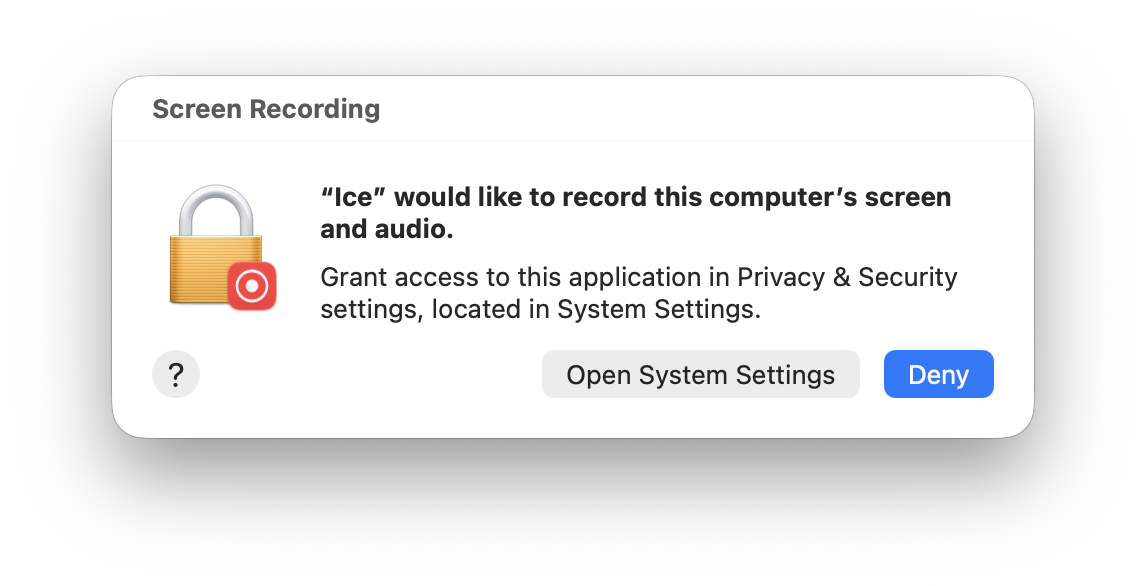
macOS describes the permission broadly, even when a menu bar app wants item images.
If a “capturing your screen” status stays on while Bartender is running, it is reasonable to infer that the app is continuing to use screen-capture access. The message does not, by itself, reveal whether a continuous movie is being saved, whether the whole display is captured, or whether anything is transmitted. Those are different questions from whether you have granted access to screen pixels. Apple's permission guide lets you review and change that access at any time.
Why does Bartender ask for it?
Bartender 6 presents Screen Recording and Accessibility together during setup. Accessibility lets a manager interact with system-owned menu bar items to hide, reveal, or reorder them. Screen Recording supplies their appearance for visual features. The permissions do different jobs; granting one does not grant the other. Our menu bar permissions test walks through the same distinction across several apps.
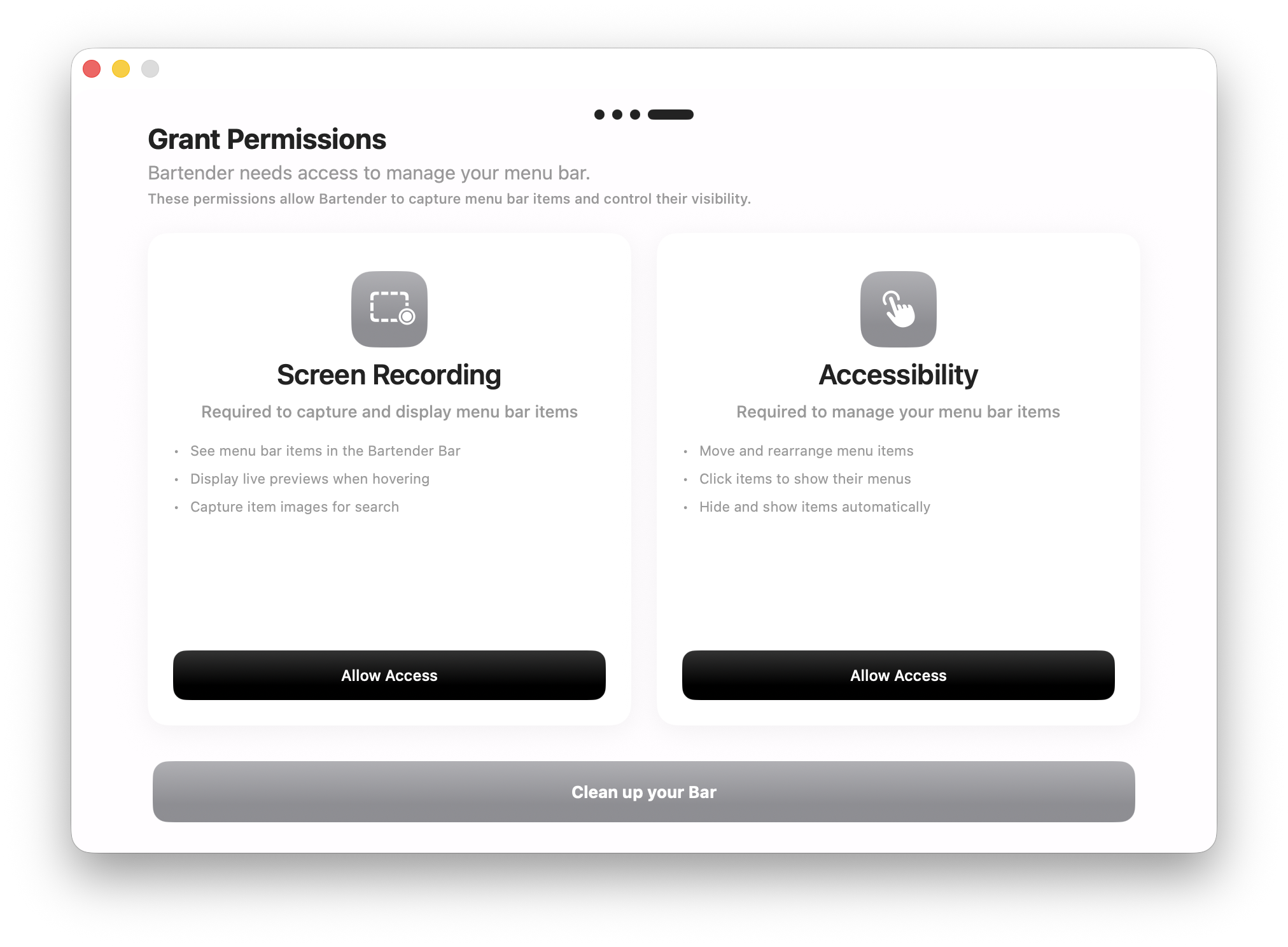
Bartender 6 requests both permissions during setup.
In Bartender 6, the choice has a practical cost: with Screen Recording off, its Layout preferences show a “Screen Recording Disabled” wall. That is how this version's Layout interface behaves, even though Accessibility is the permission used to control menu bar items.
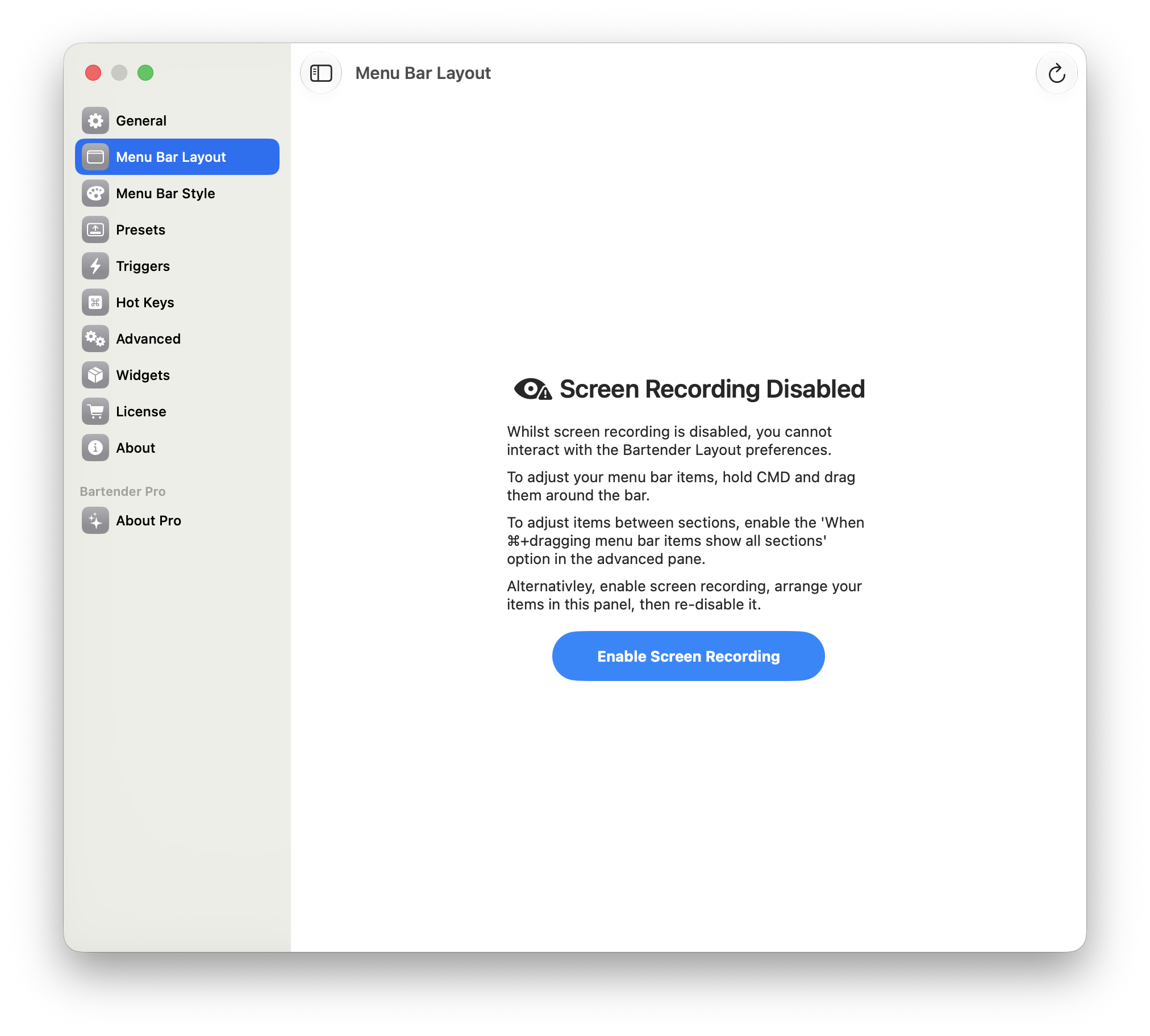
Bartender 6's Layout editor is blocked when it detects no Screen Recording access.
Bartender's Golden Gate preview notes and Bartender 7 announcement describe a newer path: Screen Recording is optional, and Bartender shows app icons instead of captured menu bar item images when it is off. Check which version you have before applying advice about Bartender 6. For more detail, see why Bartender asks for Screen Recording and the macOS 27 permission loop guide.
Is the Control Center icon my camera or microphone?
The location and camera-like shape of a macOS privacy control can be easy to misread. Apple says the orange dot beside Control Center indicates microphone use, the green dot indicates camera use, and the purple dot indicates system audio recording. Clicking a privacy dot can identify the app involved. See Apple's Control Center guide for the current indicators. A Bartender screen-capture message is about screen access; it is not automatically a camera or microphone alert.
How can I stop the capture status?
- Open System Settings → Privacy & Security → Screen & System Audio Recording.
- Find Bartender and switch its permission off. You can also quit Bartender to stop its active capture use.
- Reopen Bartender and check the features you need. On Bartender 6, Layout may be unavailable. Bartender 7 says it can use app icons instead of captured item images.
Apple documents the on/off control for each app. If Bartender 6 keeps asking for permission even after you enable it, use our specific troubleshooting guide. You do not need to grant a permission simply because an app requests it; choose based on the features you actually use.
Other managers make different choices. Ice requests Screen Recording but says it can work in a limited mode without it. Thaw labels Screen Recording optional. Barbee also requests it. These are app-specific choices, not a macOS requirement for hiding an icon.
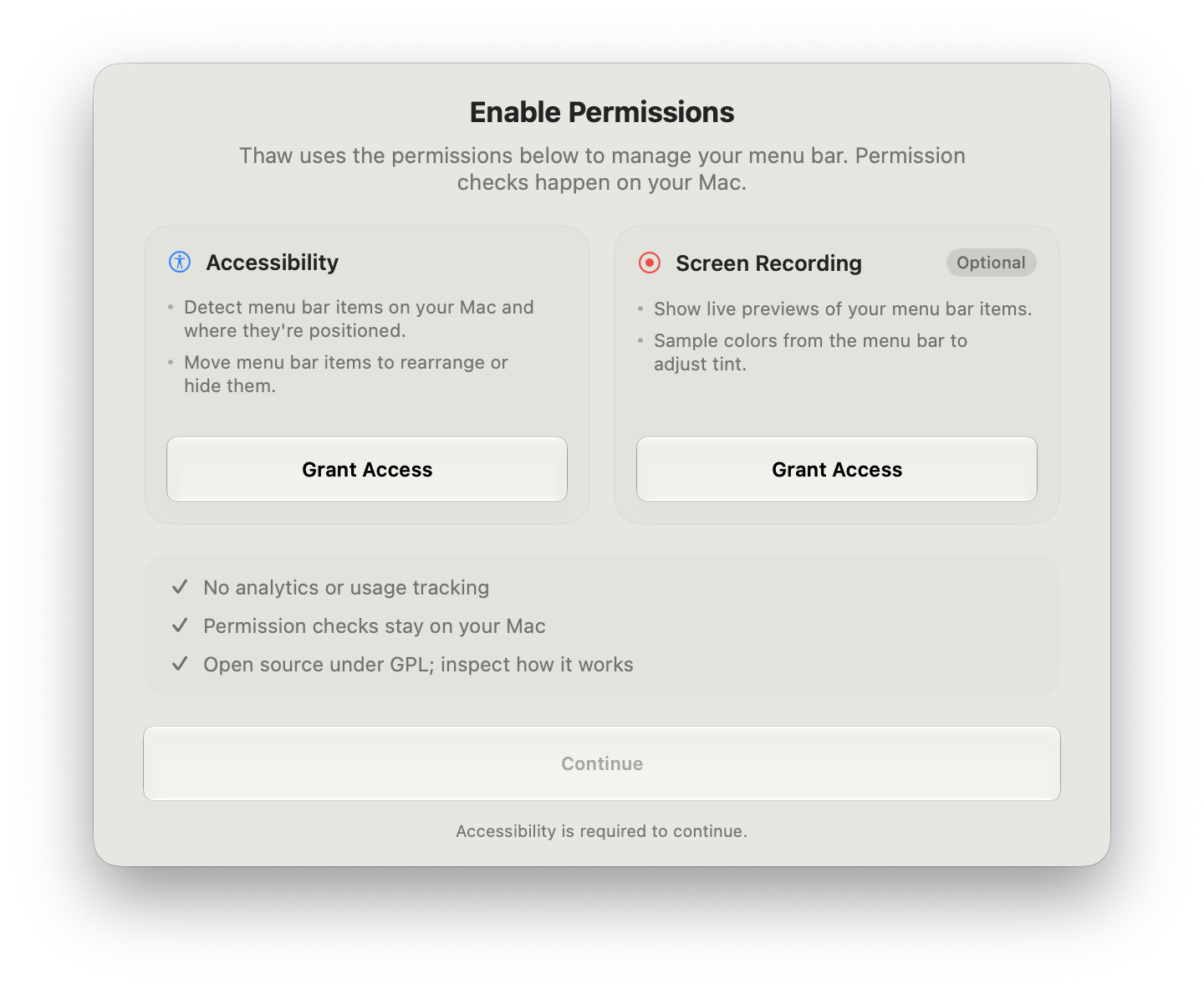
Thaw explicitly marks Screen Recording as optional in its setup.
Lounge asks for Accessibility only and never requests Screen Recording, so using it does not create a persistent screen-capture indicator. Its main preferences are shown below. Lounge costs $3.99/year with a 7-day trial. If you are comparing workflows as well as permissions, read Lounge vs Bartender or the macOS 27 alternatives guide.
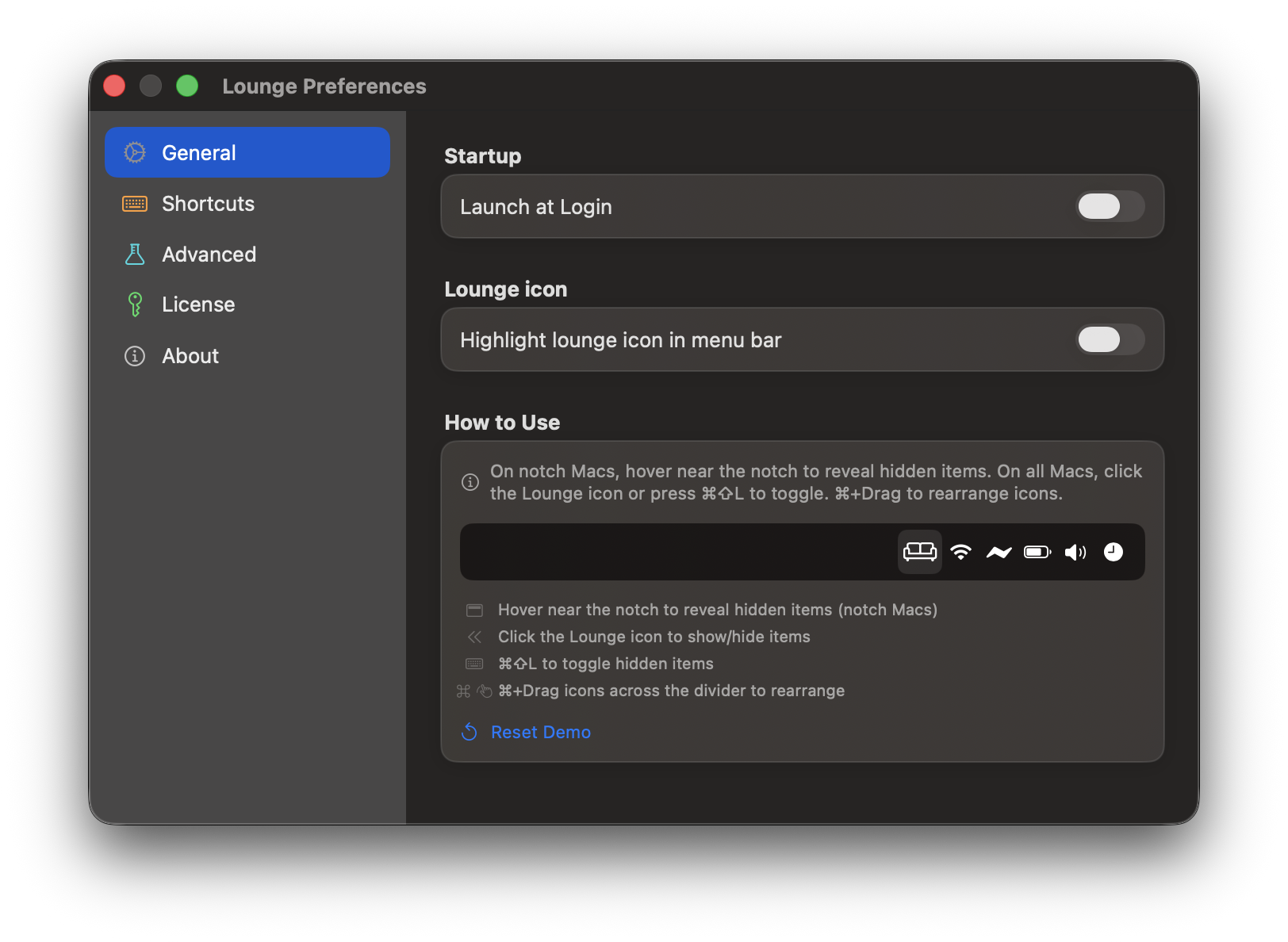
Lounge's General preferences for menu bar controls; the app does not ask for Screen Recording.